
The thing that keeps people on Anki long after they've outgrown it is the schedule — months, sometimes years, of review history they can't face throwing away. Here's the good news: you don't have to. Import your Anki .apkg into MintDeck and it all comes with it — the cards, the media, cloze and image-occlusion cards, your tags, and, crucially, your review schedule. Your cards keep their due dates, so you land on the exact day you left off, not back at square one. And like everything in the study engine, importing is free.
Here's the full migration, step by step.
First, get an .apkg file
MintDeck imports the standard Anki package format (.apkg). Two common sources:
- Your own decks. In Anki on the desktop, select a deck (or your whole collection), choose File → Export, and save as a
.apkg. Move it to your iPhone via AirDrop, iCloud Drive, or any file-sharing app. - Shared decks. Download any deck from AnkiWeb's shared decks — those downloads are
.apkgfiles, ready to import as-is.
If your export imports with no cards (a "dummy database"), re-export it from Anki with "Support older Anki versions" checked in the export dialog. Newer Anki defaults to a format some importers can't read; that one checkbox produces a compatible file.
Step 1: Open the Anki importer
In MintDeck, go to the Decks tab, tap +, choose Import, then Anki Deck.
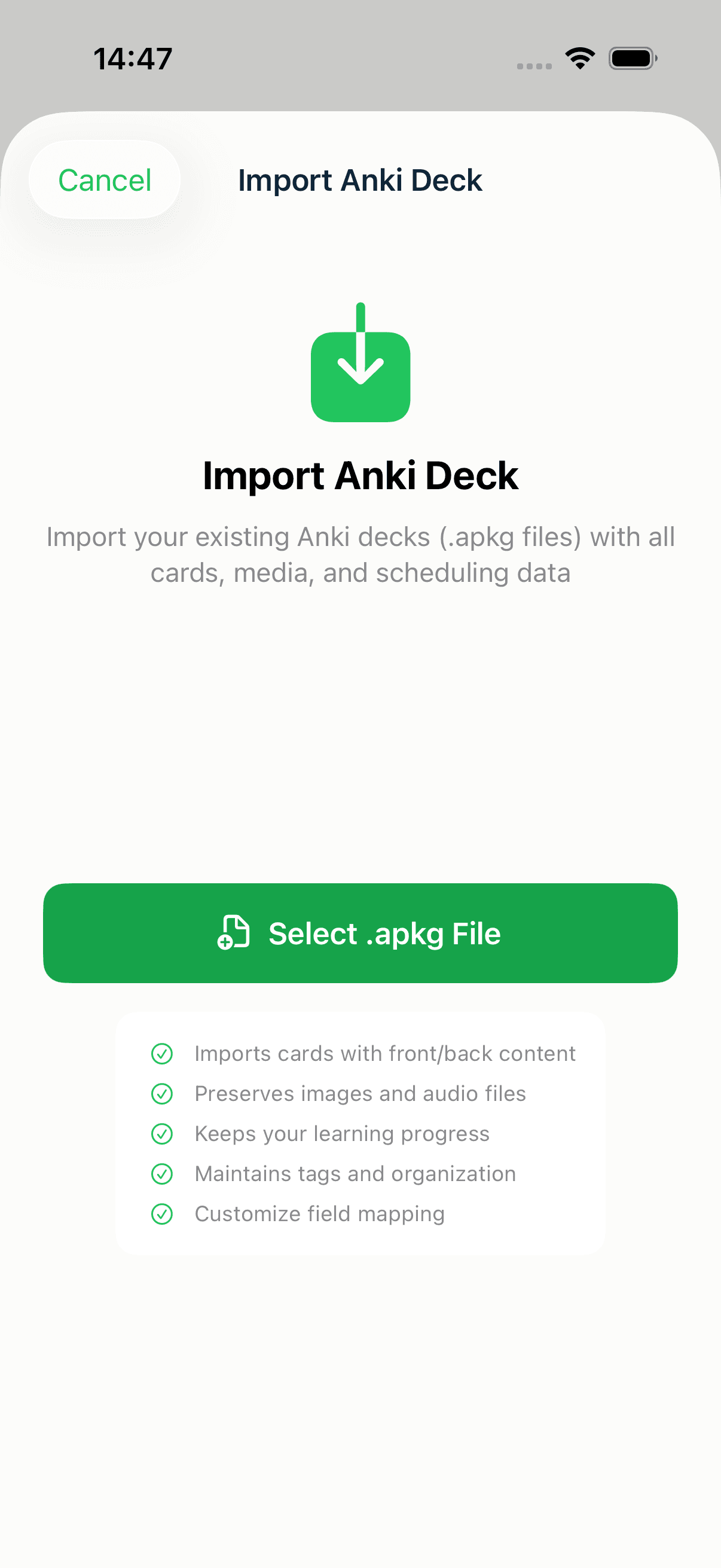
Tap Select .apkg File and choose your package from the Files app. As the screen notes, the import preserves your cards' front/back content, images and audio, learning progress, and tags.
Step 2: Review the mapping and preview
MintDeck reads the deck's note types and maps the Anki fields to flashcard fields automatically — you'll see "Using Anki template-based mapping." A preview lets you page through the actual cards so you can confirm they came through correctly before committing.
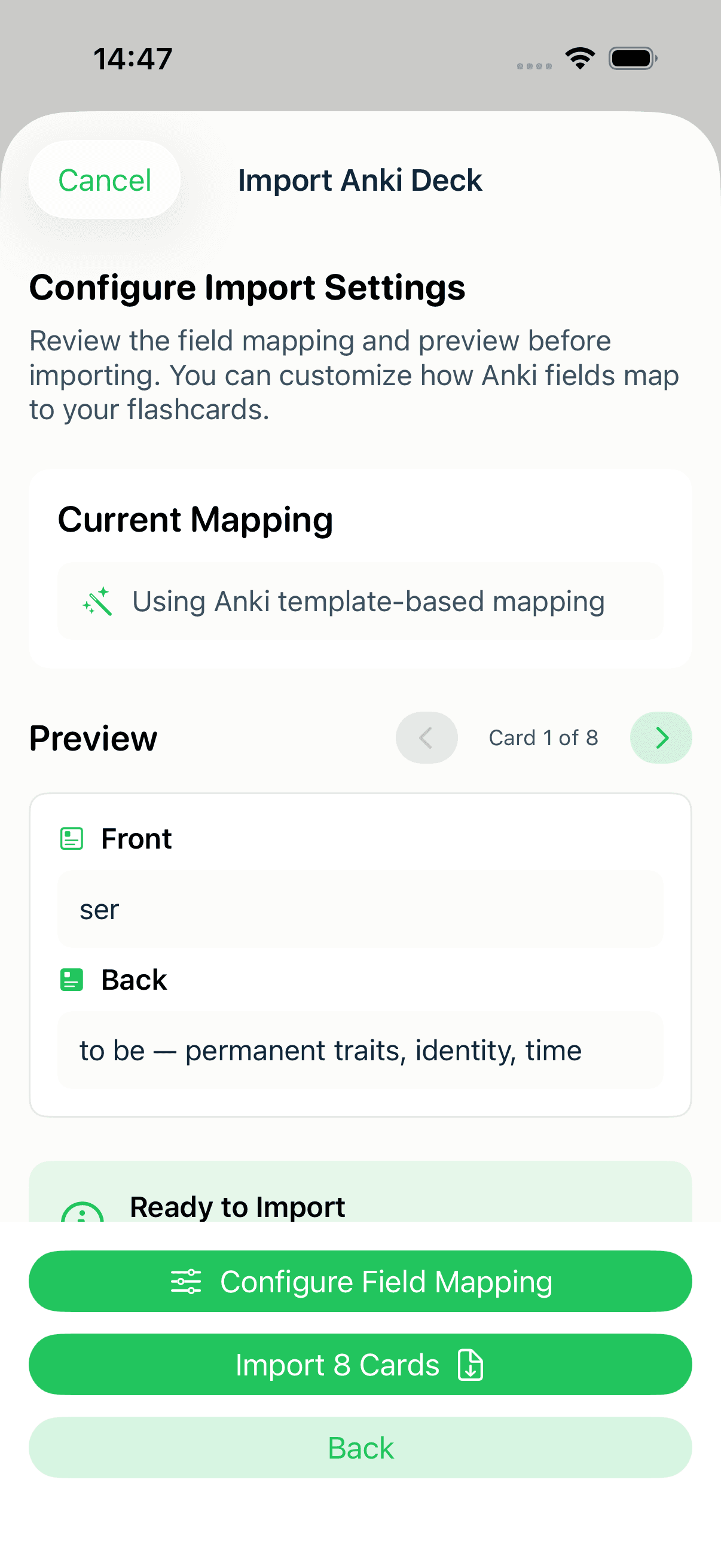
If you ever need to adjust how fields line up, tap Configure Field Mapping to reassign them. For a standard Basic note type, the automatic mapping is all you need.
A note on sub-decks
If your .apkg contains sub-decks, MintDeck asks how to organize them under a Subdeck Options section, with three choices:
- Folder with decks (recommended) — creates a folder and keeps each sub-deck as its own deck inside it. Closest to your Anki structure.
- Combine into one deck — merges every sub-deck's cards into a single deck.
- Separate top-level decks — imports each sub-deck as its own deck at the top level.
A single-deck package (like the one shown here) skips this step and imports straight away.
Step 3: Import
Tap Import N Cards and MintDeck brings the deck across.
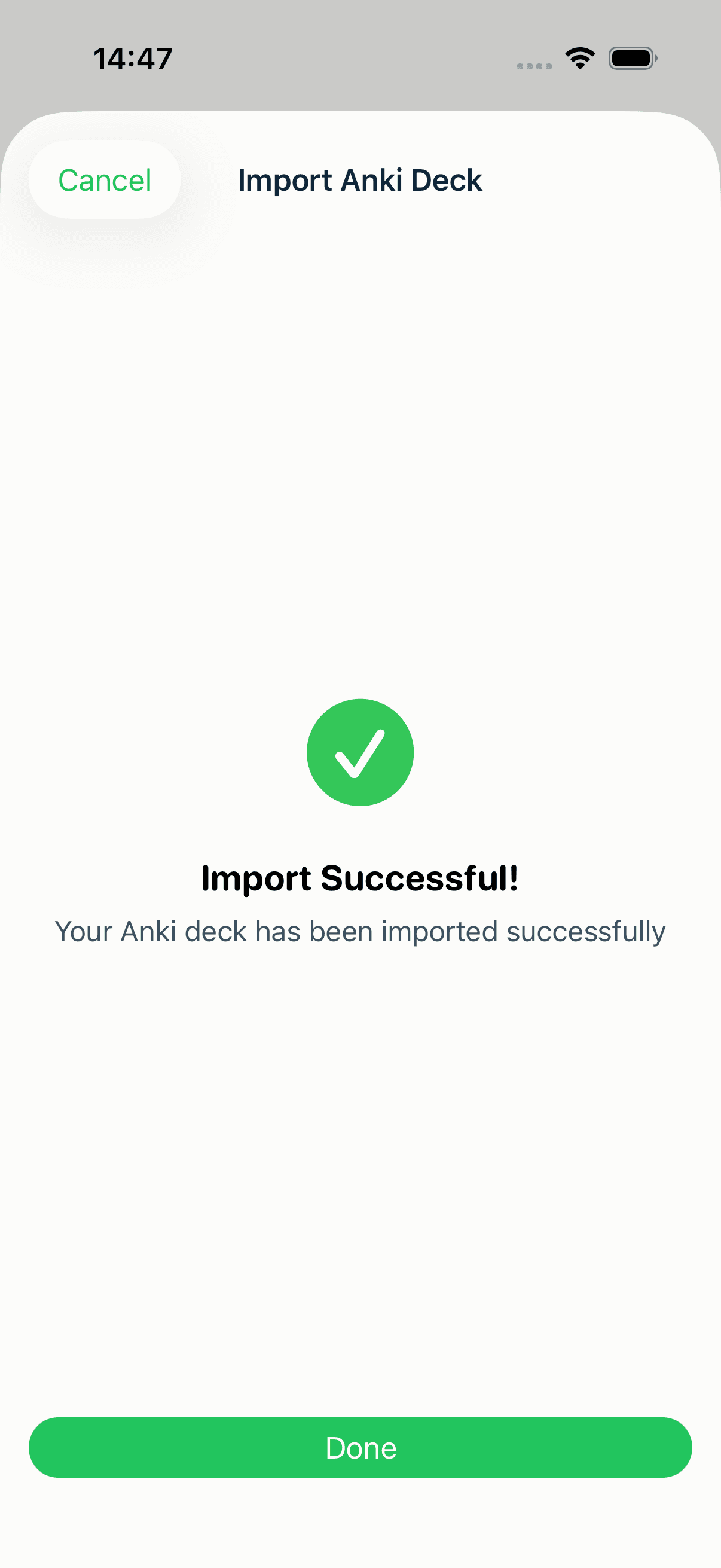
Tap Done to land in your new deck.
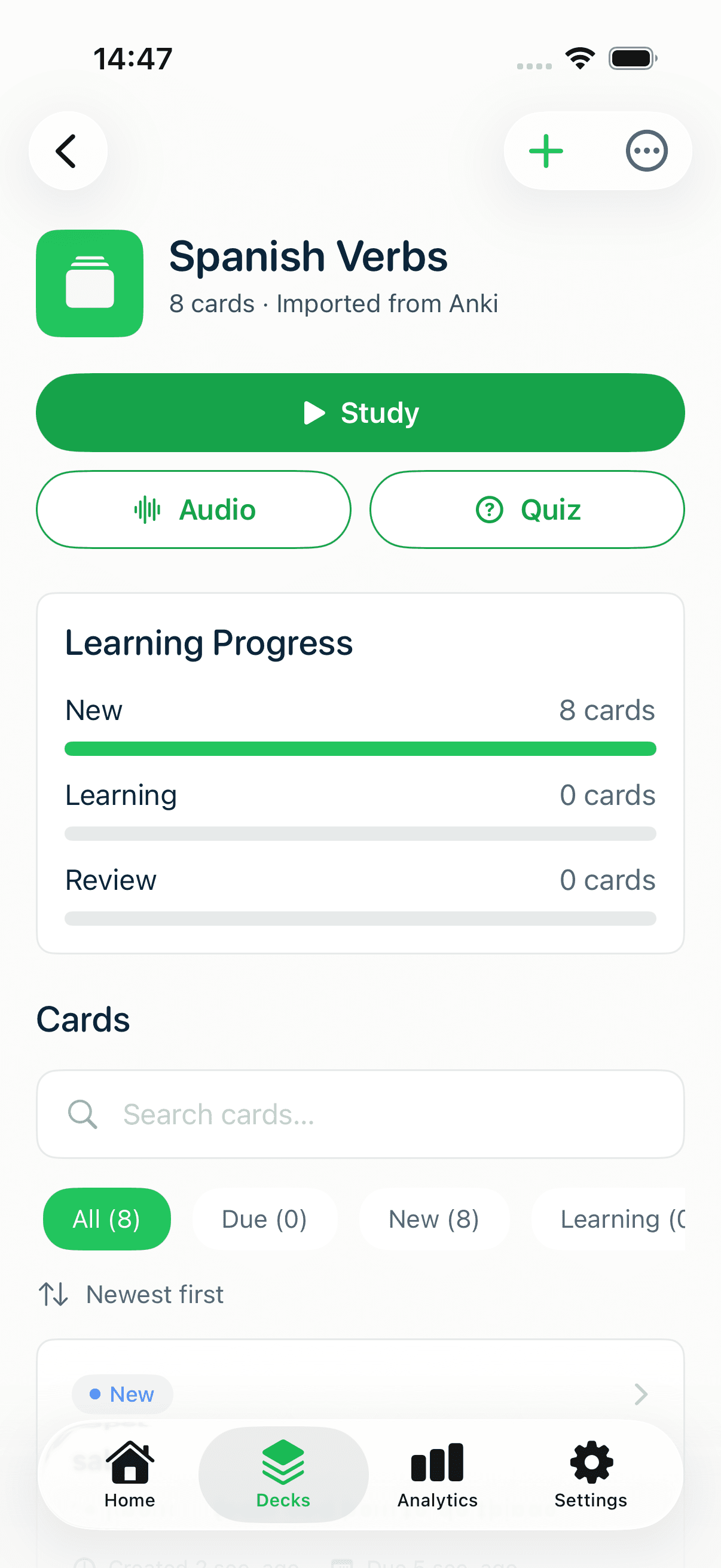
Notice the deck is tagged "Imported from Anki" — and because your scheduling came with it, cards keep their due dates instead of resetting to new. You don't restart months of repetitions.
What carries over
A clean migration means nothing important is left behind. From a standard .apkg, MintDeck brings across:
- Cards — the front and back content of every note.
- Cloze deletions and image-occlusion cards.
- Media — images and audio embedded in your notes.
- Tags — your existing organization.
- Study progress — intervals and due dates, so FSRS continues your schedule rather than starting from scratch.
MintDeck reads modern Anki package formats, so most decks — your own exports and AnkiWeb downloads alike — import without any conversion step.
Bringing Quizlet sets over too
Quizlet has no direct importer, but it exports CSV, and MintDeck imports CSV. Export your Quizlet set as a CSV (it uses Term and Definition columns), then follow the CSV import guide — map Term → Front and Definition → Back. Same destination, different on-ramp.
Where to go next
Your library is in. Now make it stick: the free study walkthrough shows the FSRS review loop and hands-free Audio Study, and the science of spaced repetition explains why preserving your schedule matters so much. Building new decks from scratch? The CSV import guide is the fastest path.