
If your material already lives in a spreadsheet — or you can get a chatbot to produce one — you don't need to type cards one by one. MintDeck imports a CSV directly, auto-detects your columns, and turns the file into a study-ready deck in a few taps. It's free and unlimited: no card caps, no subscription.
This guide covers the exact format, the fastest way to generate a CSV (including the ChatGPT trick), and the import steps end to end.
The format: two required columns, the rest optional
A MintDeck CSV needs just two columns:
- Front — the question or prompt.
- Back — the answer.
Everything else is optional and additive:
- Notes — context, mnemonics, or extra explanation attached to the card.
- Tags — comma-separated labels for filtering and organization.
- Front Media / Back Media — an image or audio file, given as a relative path or an
http(s)URL.
A minimal file looks like this:
Front,Back,Notes,Tags
"Where is the train station?","¿Dónde está la estación de tren?","estación = station · tren = train","travel,transport"
"Ask for the bill (restaurant)","La cuenta, por favor","Literally ""the account, please.""","travel,food"
"Do you speak English?","¿Hablas inglés?","Formal: ¿Habla inglés?","travel,language"
You don't have to get the technicalities perfect. MintDeck auto-detects the delimiter (comma, tab, or semicolon) and the encoding (UTF-8 or UTF-16), so an export from Excel, Numbers, or Google Sheets just works. Wrap any value containing a comma in double quotes.
Step 1: Build the CSV (or have AI build it)
You have two easy ways to get a file.
From a spreadsheet. Put your prompts in a Front column and answers in a Back column, add Notes and Tags if you want them, and export as CSV.
From a chatbot — the fastest trick of all. Paste your notes into ChatGPT (or any assistant) and ask for a CSV table. A prompt like this works well:
"Turn these notes into a CSV with the columns Front, Back, Notes, Tags. Front is the question, Back is the answer. Output only the CSV."
Copy the result into a plain text file, save it with a .csv extension, and you have an importable deck.
Pro Tip
Keep the spreadsheet or the chatbot prompt around. It becomes the source of truth for your deck — when you learn something new, add a row and you've got a clean, repeatable way to grow your material.
Step 2: Open the CSV importer
In MintDeck, go to the Decks tab, tap the + button, choose Import, then CSV.
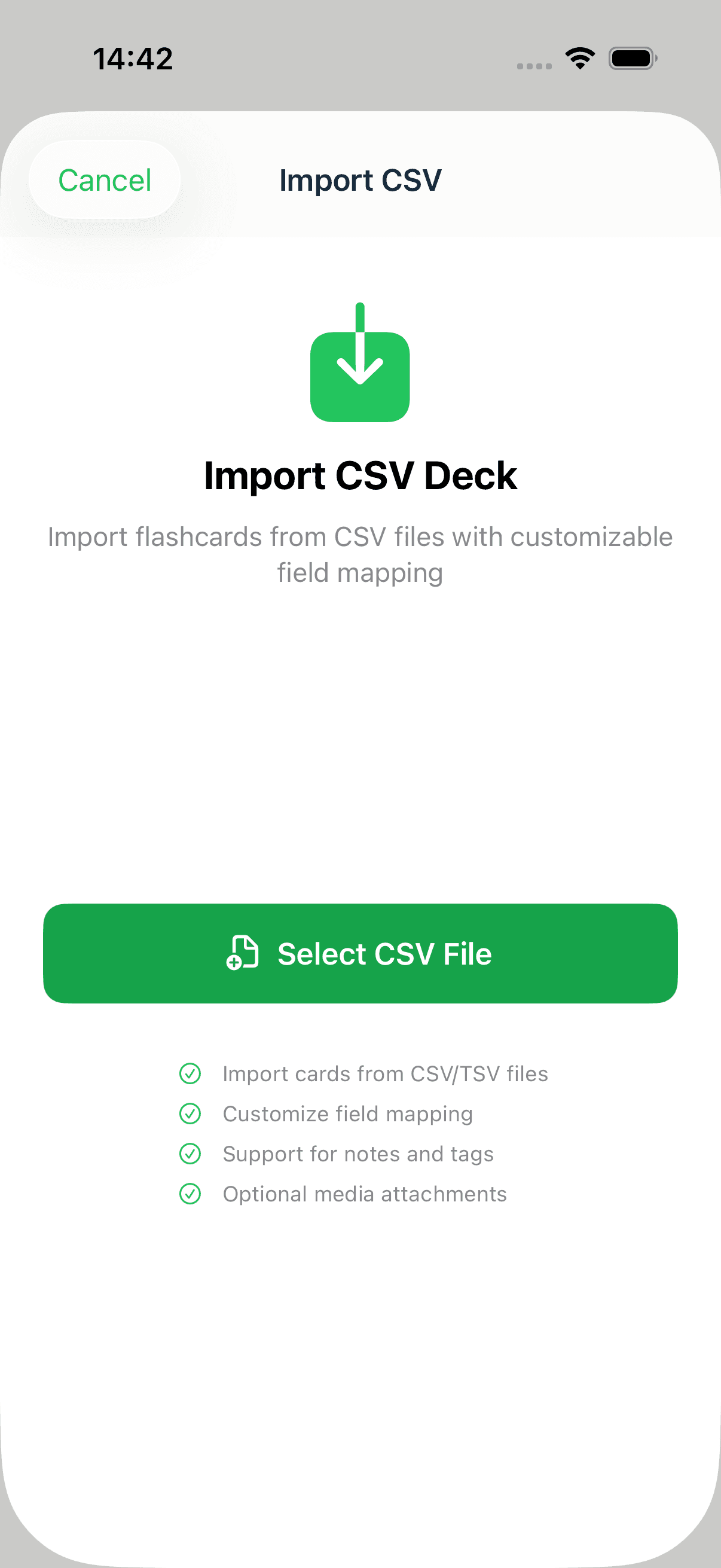
Tap Select CSV File and pick your file from the Files app (it can live on your device or in iCloud Drive).
Step 3: Check the field mapping
MintDeck reads your header row and maps the columns automatically. You'll see each source column matched to a flashcard field, with the deck named after your file.
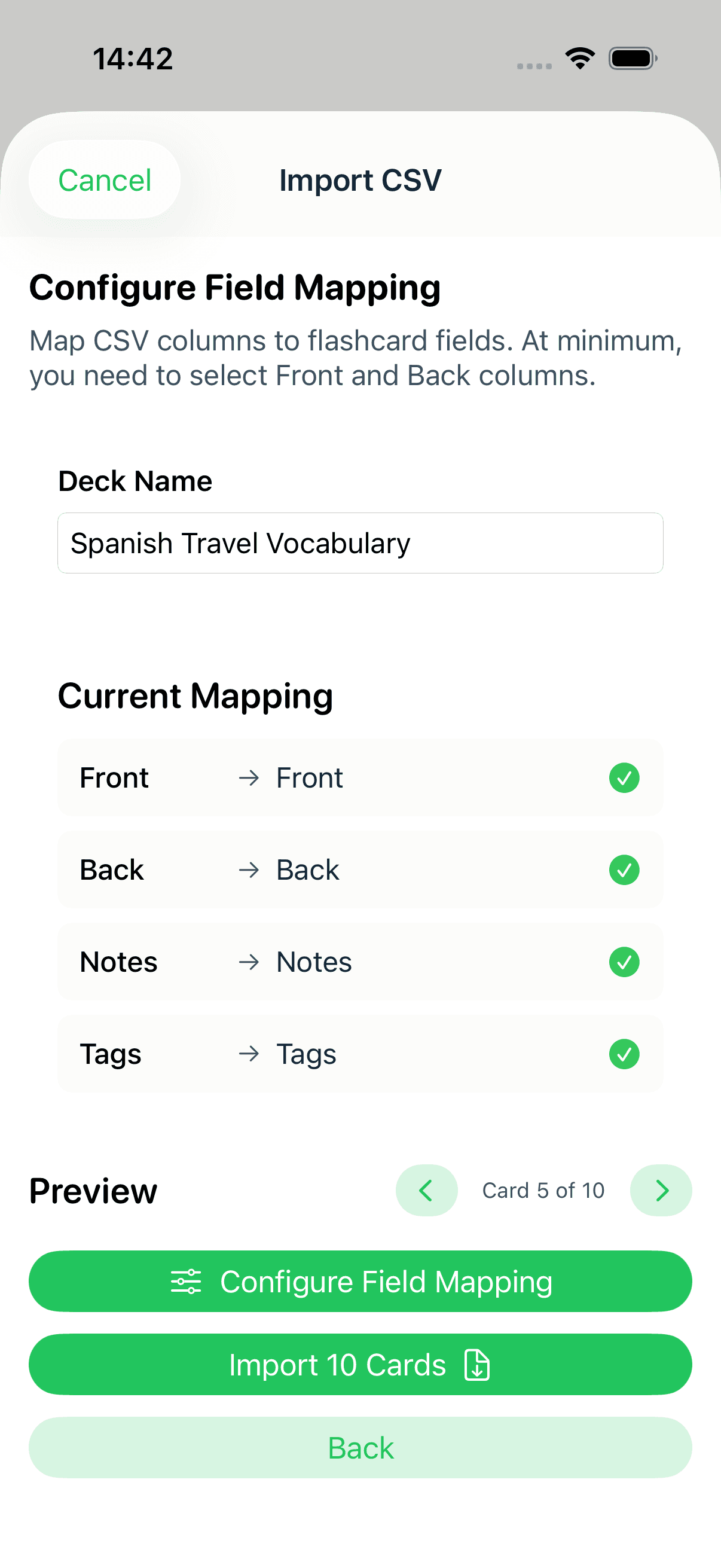
If a column landed in the wrong place — or your headers use different names — tap Configure Field Mapping to reassign which column feeds Front, Back, Notes, and Tags. Only Front and Back are required; leave the rest unmapped if you don't have them.
The Preview card lets you page through the parsed rows so you can confirm everything looks right before importing. When it does, tap Import N Cards.
Step 4: Import and study
That's it — your cards are in.
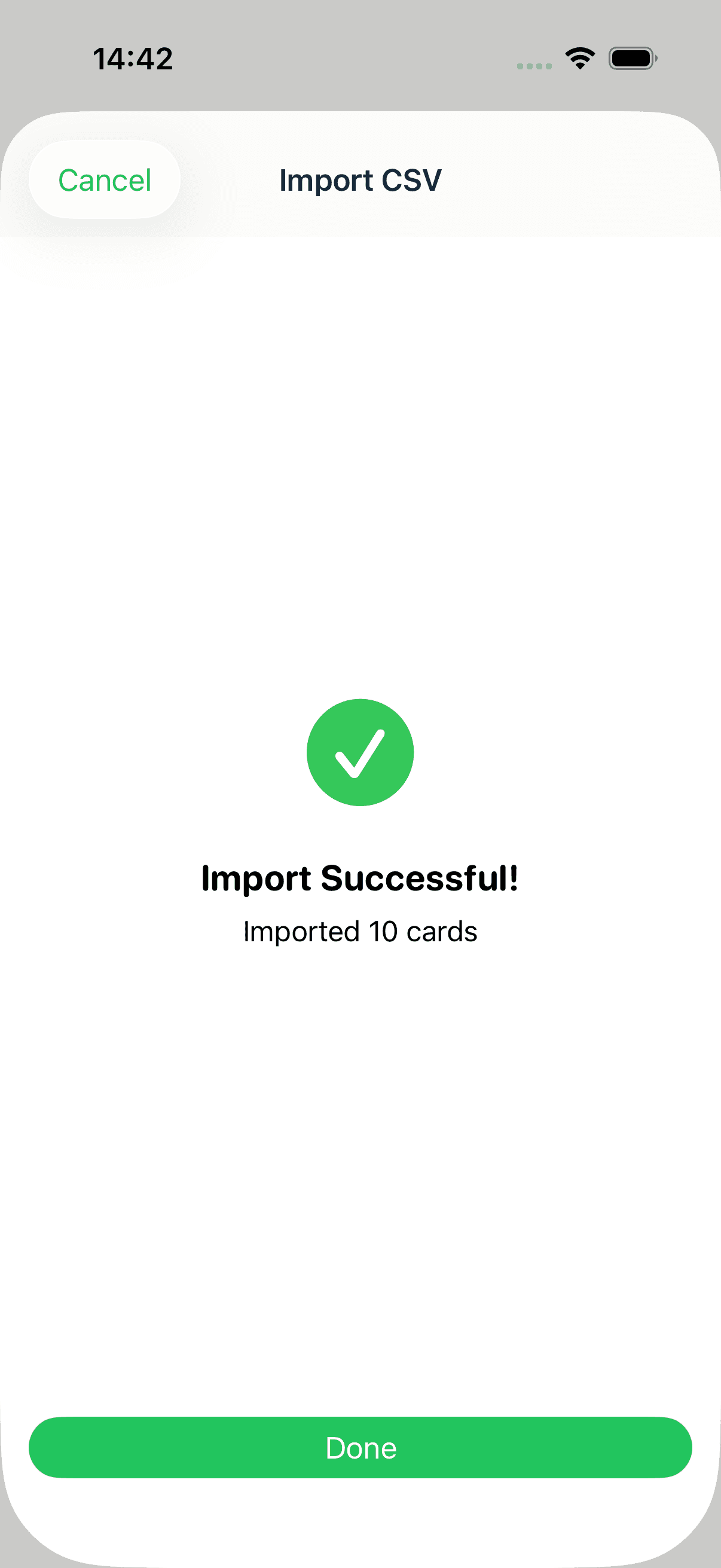
Tap Done and MintDeck drops you straight into the new deck. Tap Study to start a spaced-repetition session, or Audio to review hands-free.
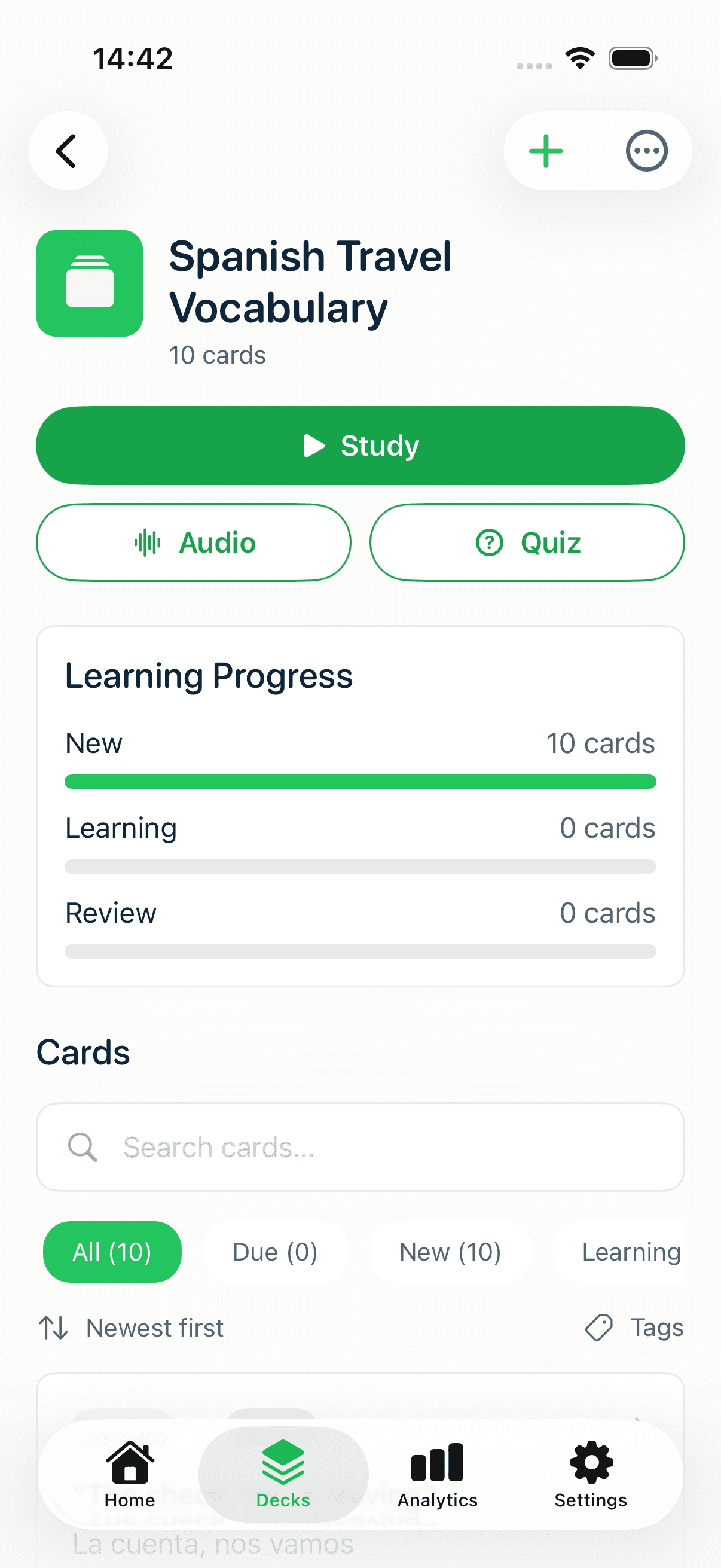
From here the cards behave exactly like any other deck: FSRS scheduling, audio study, notes, and tags all work. If you're new to the study loop, the free study walkthrough covers it.
Coming from Quizlet?
Quizlet doesn't export to MintDeck directly, but it does export to CSV — which is all you need. In Quizlet, open your set, choose Export, and copy or download the data as a CSV (Quizlet uses Term and Definition columns).
Then import it exactly as above. On the mapping screen, point Term → Front and Definition → Back (MintDeck recognizes the Quizlet format, so this is usually automatic). Your set is now a MintDeck deck, free of Quizlet's study-mode paywalls. For the bigger picture, see MintDeck vs Quizlet.
A few things worth knowing
- It's genuinely free and unlimited. Importing CSVs never costs a credit, no matter how many cards or decks.
- Media works two ways. Put an image or audio file path in a
Front Media/Back Mediacolumn, or link to one with anhttp(s)URL. - Big files are fine. Import a thousand-row export in one go — the preview and mapping steps are the same.
Where to go next
CSV import is the fastest path to your own material. If you're migrating an existing library instead, MintDeck imports Anki decks too — with your scheduling intact — in the Anki import guide. And if you'd rather not assemble a file at all, AI generation can build a deck from a topic or your notes (the one optional, credit-based feature) — see how to make flashcards with AI.