
Most of MintDeck just works without you touching a single setting. But a few controls are worth knowing about — your daily goal, when reminders arrive, which voice reads your cards, and where your data lives. This is a quick guided tour of the Settings tab, one line per control, so you can find what you need and move on.
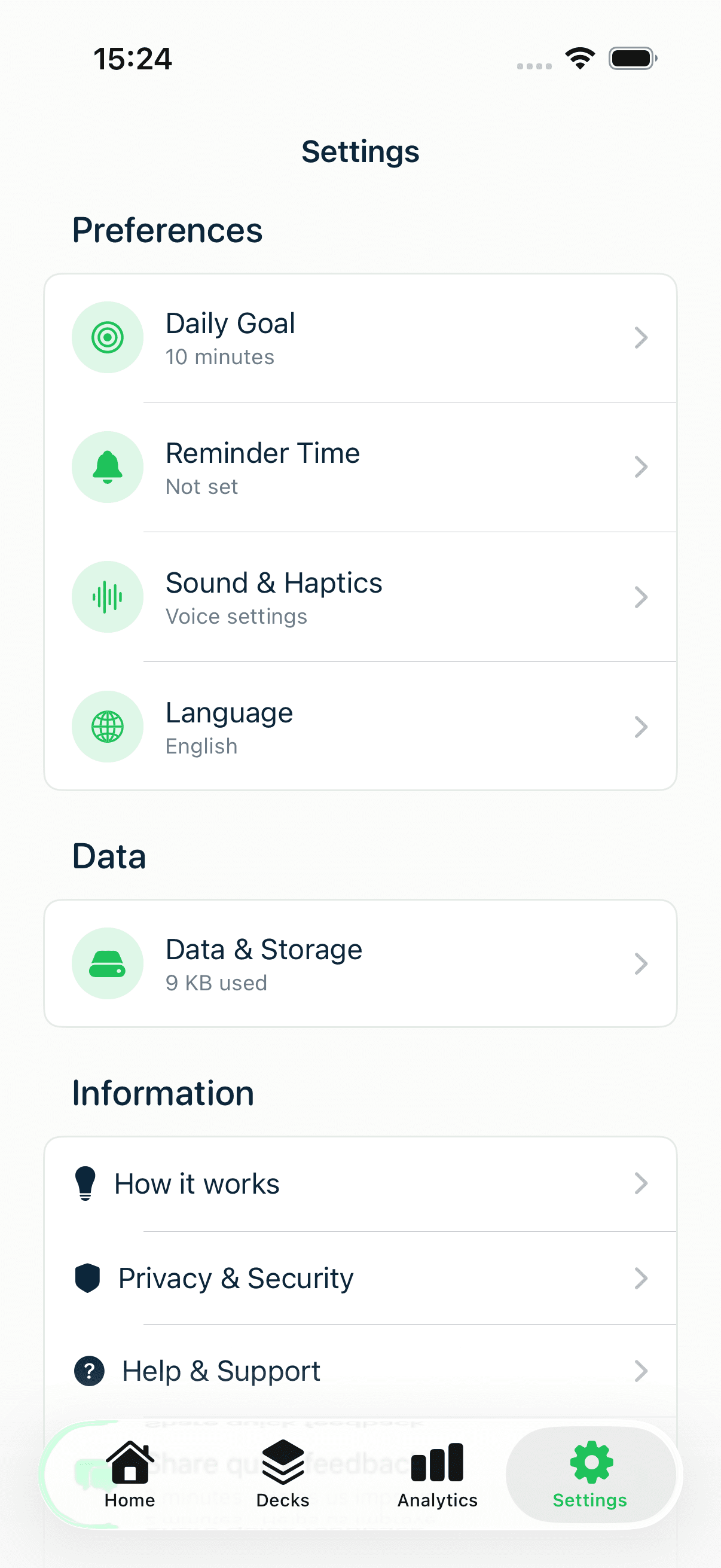
Open the Settings tab (the gear icon). It's organized into a few areas — Preferences, Data, Information, and your AI Credits — and everything below lives there.
Preferences
The first section is where you tune how studying feels day to day.
Daily Goal. Opens Learning Preferences, where you set two things: your daily study time and how many brand-new cards to introduce per day.
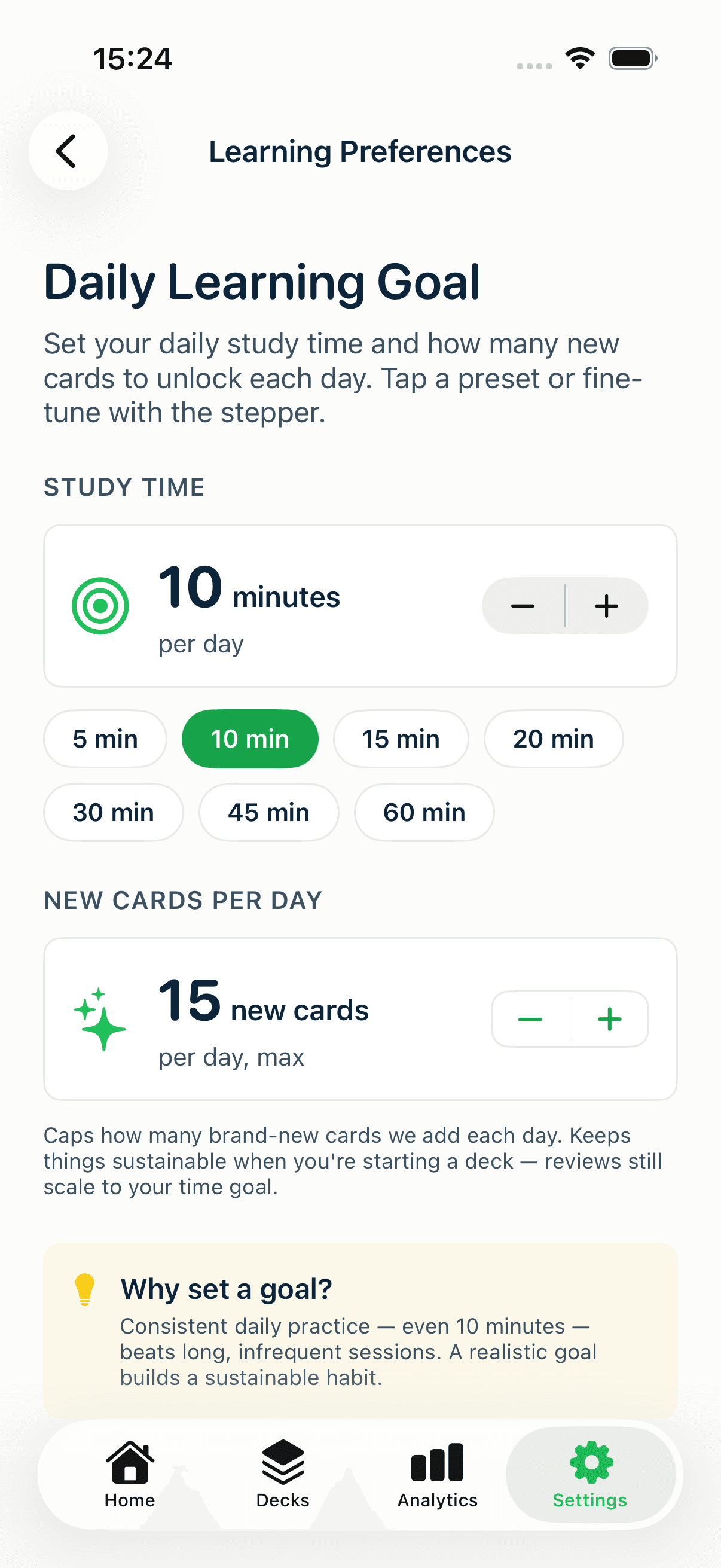
- Study time — a daily minutes target, from 1 to 180. Tap a preset (5, 10, 15, 20, 30, 45, 60) or fine-tune with the stepper.
- New cards per day — caps how many never-seen cards enter your queue each day, from 5 to 50 in steps of 5. Reviews still scale to your time goal; this knob only limits the new material so a fresh deck doesn't bury you.
Pro Tip
If a big deck feels overwhelming, lower "New cards per day" rather than abandoning it. You'll still clear your reviews every day and steadily absorb new cards without the firehose.
Reminder Time. Opens Notifications. Turn on Enable Notifications to get a daily nudge to study.
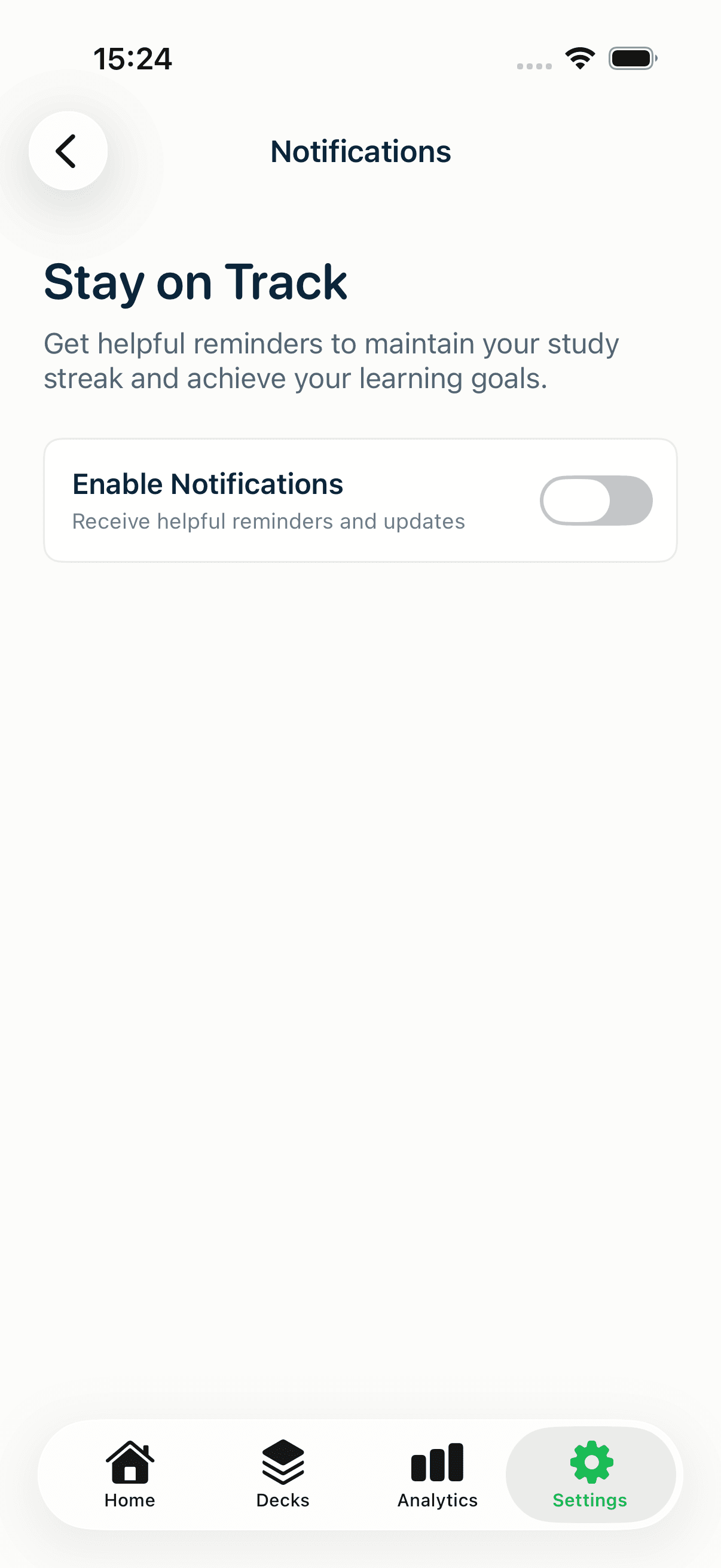
Once enabled you get two scheduling choices: Smart Scheduling, which learns when you actually study and reminds you around that time, or a fixed reminder time you pick yourself. There's also an app-icon badge that shows your due-card count.
Sound & Haptics. Opens Voice & Sound — the voice that reads your cards aloud in Audio Study, plus app-wide feedback toggles.
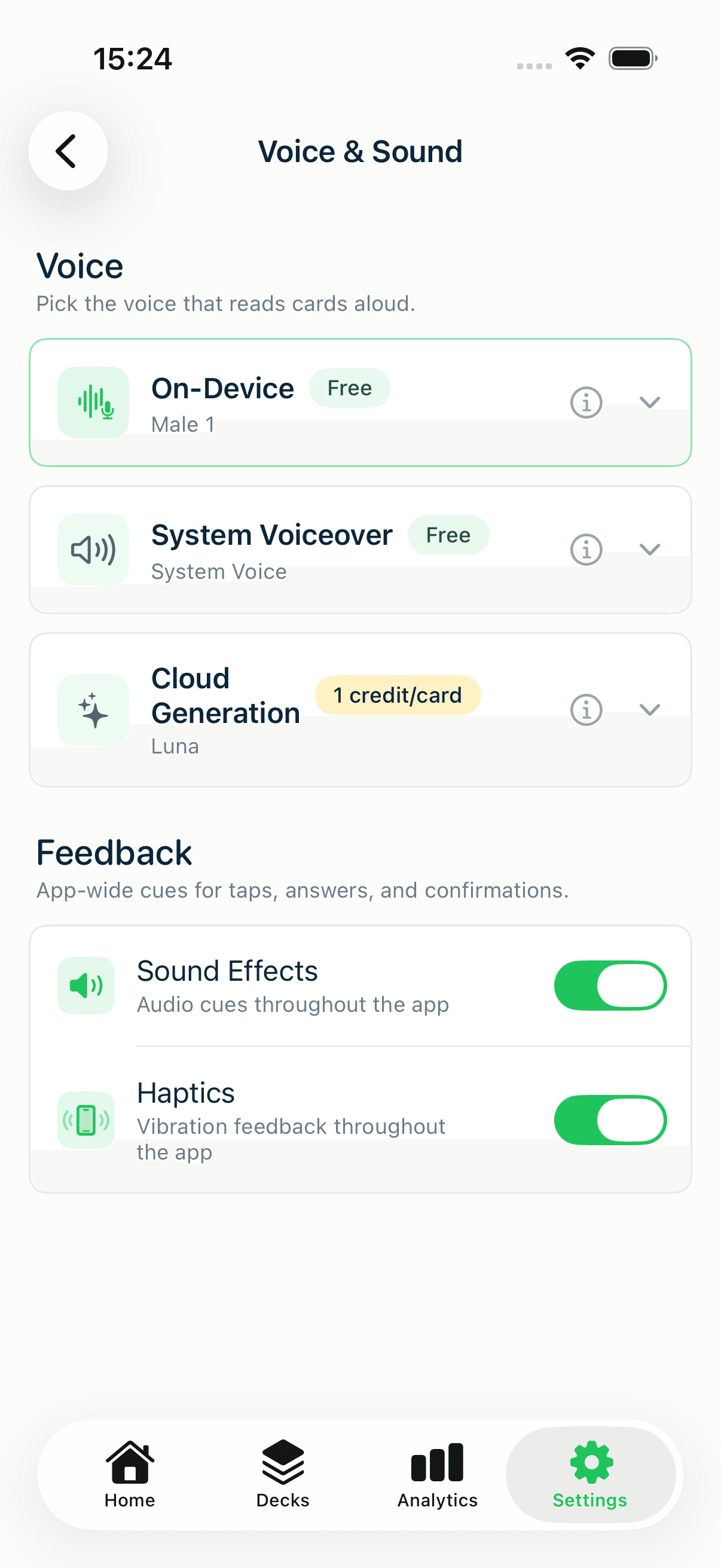
- Voice — choose between On-Device (a fast, natural voice that runs entirely on your phone, free), System Voiceover (your device's built-in iOS voices, free, 70+ languages, works offline), or Cloud Generation (the most natural option, 1 credit per card to generate). Tap the play button to preview any voice.
- Sound Effects and Haptics — turn the app's audio cues and vibration feedback on or off.
Language. Opens iOS Settings, where you can change the app's display language (MintDeck follows your system language).
Data
This section is about where your decks live and how to move or remove them.
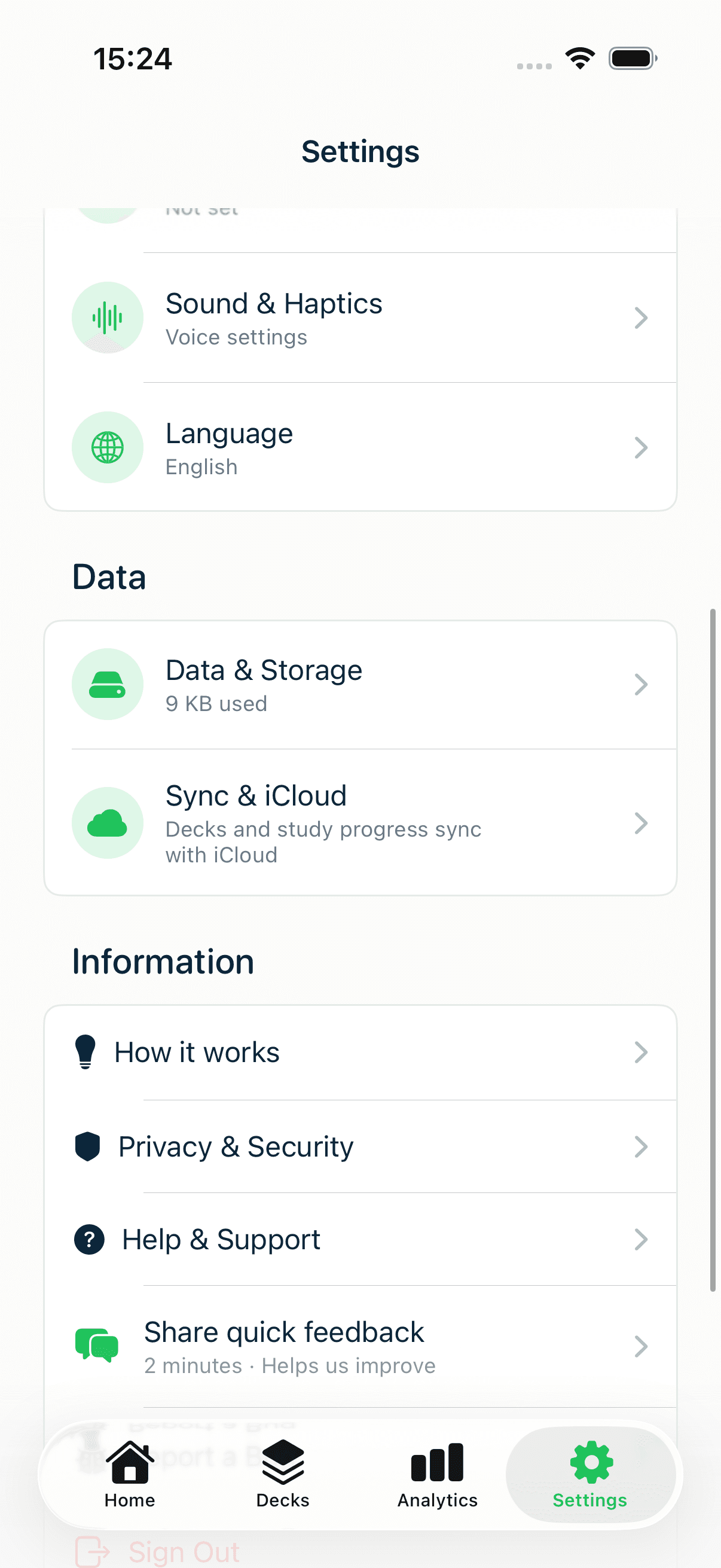
Data & Storage. Shows how much space MintDeck uses, split into media files (images and audio) and the database (decks, cards, and progress). From here you can also:
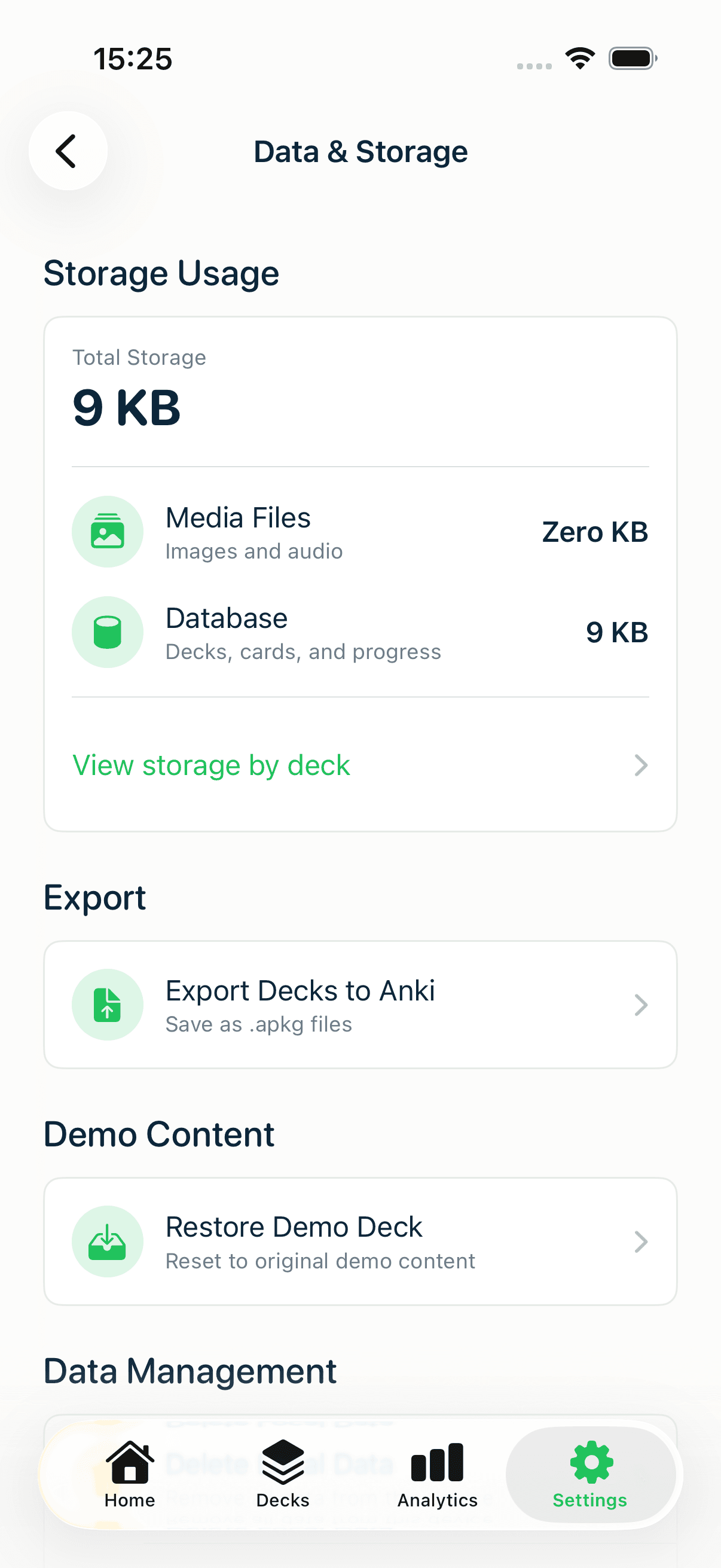
- View storage by deck to see which decks are heaviest.
- Export Decks to Anki as standard
.apkgfiles — your data is yours to take anywhere. - Delete Local Data (clears this device; your iCloud copy stays safe) or Delete All Data (a permanent, typed-confirmation wipe across all devices).
Sync & iCloud. Appears once you're signed in. It shows your last successful sync and surfaces any sync issue that needs your attention. There's no "Sync Now" button by design — sync runs automatically in the background through iCloud, so your decks and progress stay current across your iPhone, iPad, and Mac without you doing anything.
Sync is free and uses your existing Apple account — there's no separate MintDeck login and no sync paywall. Signing out stops sync but keeps your local data.
Information
The last section is help, transparency, and feedback.
- How it works — an in-app explainer of spaced repetition and MintDeck's core features.
- Privacy & Security — exactly how your data is stored and protected (more below).
- Help & Support — reach the team when you're stuck.
- Share quick feedback and Report a Bug — a two-minute survey and a bug reporter that attaches a screenshot for you.
Privacy & Security, in detail
This screen is a set of plain-English explanations you can expand, plus links to the full Privacy Policy and Terms.
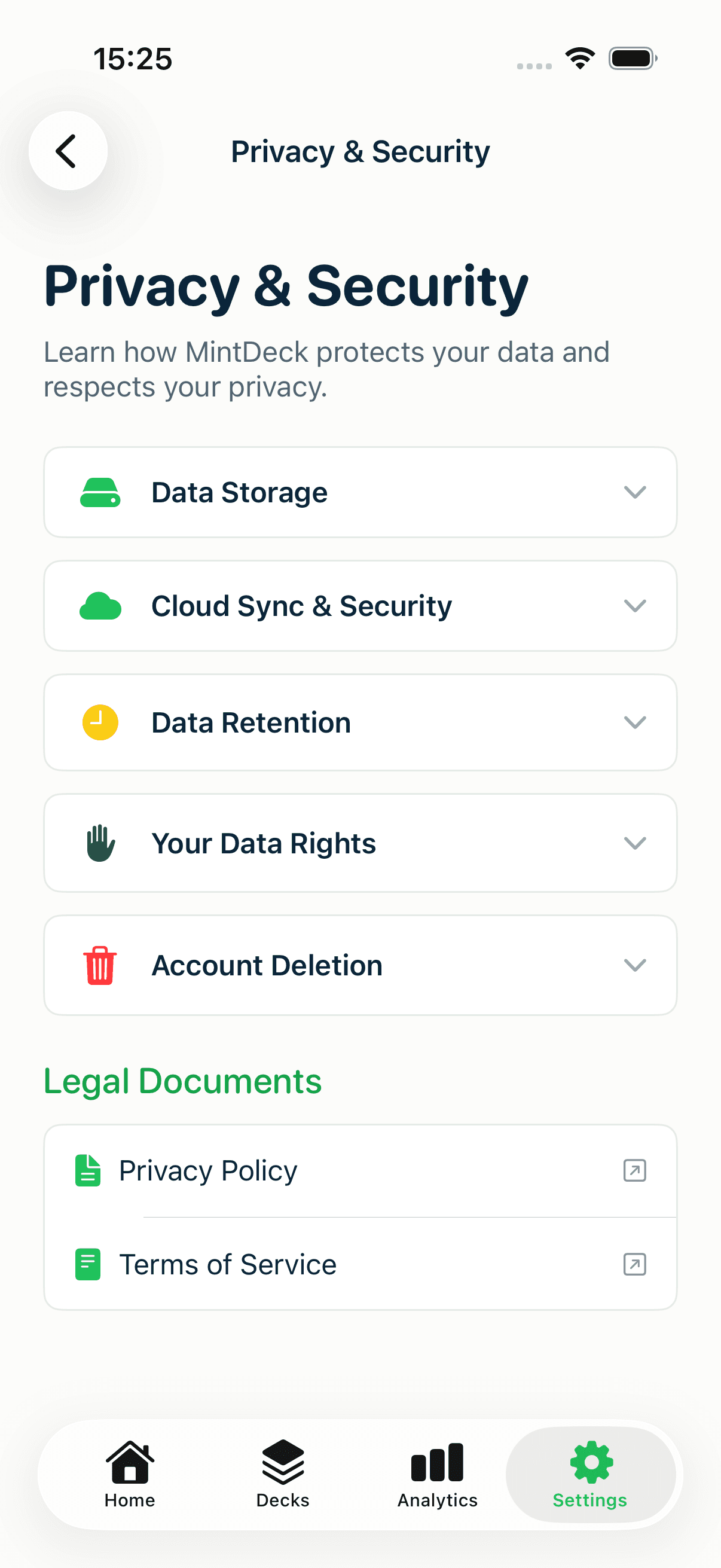
It covers how your data is stored (local-only without an account, or end-to-end encrypted in iCloud when you sign in), how cloud sync is secured, how long data is retained, your data rights (access, export, deletion, portability), and how to delete your account. The short version: MintDeck doesn't sell your data, doesn't use it for ads, and can't read your flashcard content.
Credits & Billing
At the top of Settings you'll see your AI Credits balance. Tapping it opens your credit history and the option to top up. Credits power only the optional AI features — generating decks from a topic or PDF, and premium AI voices. Everything else — building decks by hand, importing CSV and Anki files, FSRS studying, Audio Study with free voices, images, math, tags, folders, and iCloud sync — never costs a credit. New accounts start with 10 free credits to try the AI features, and you never have to.
That's the whole tour
You don't need to memorize any of this. Set a daily goal you'll actually hit, turn on a reminder if you want one, and let sync run itself. When you're ready to put these settings to work for a specific goal, the exam and language-learning setup guide turns them into concrete recipes — and the free study walkthrough covers the daily review loop itself.